
Client Portal & Requests
Uploading and downloading files
Learn how to upload, download, and organize client files in Tidyflow, including bulk downloads and full-workspace backups.
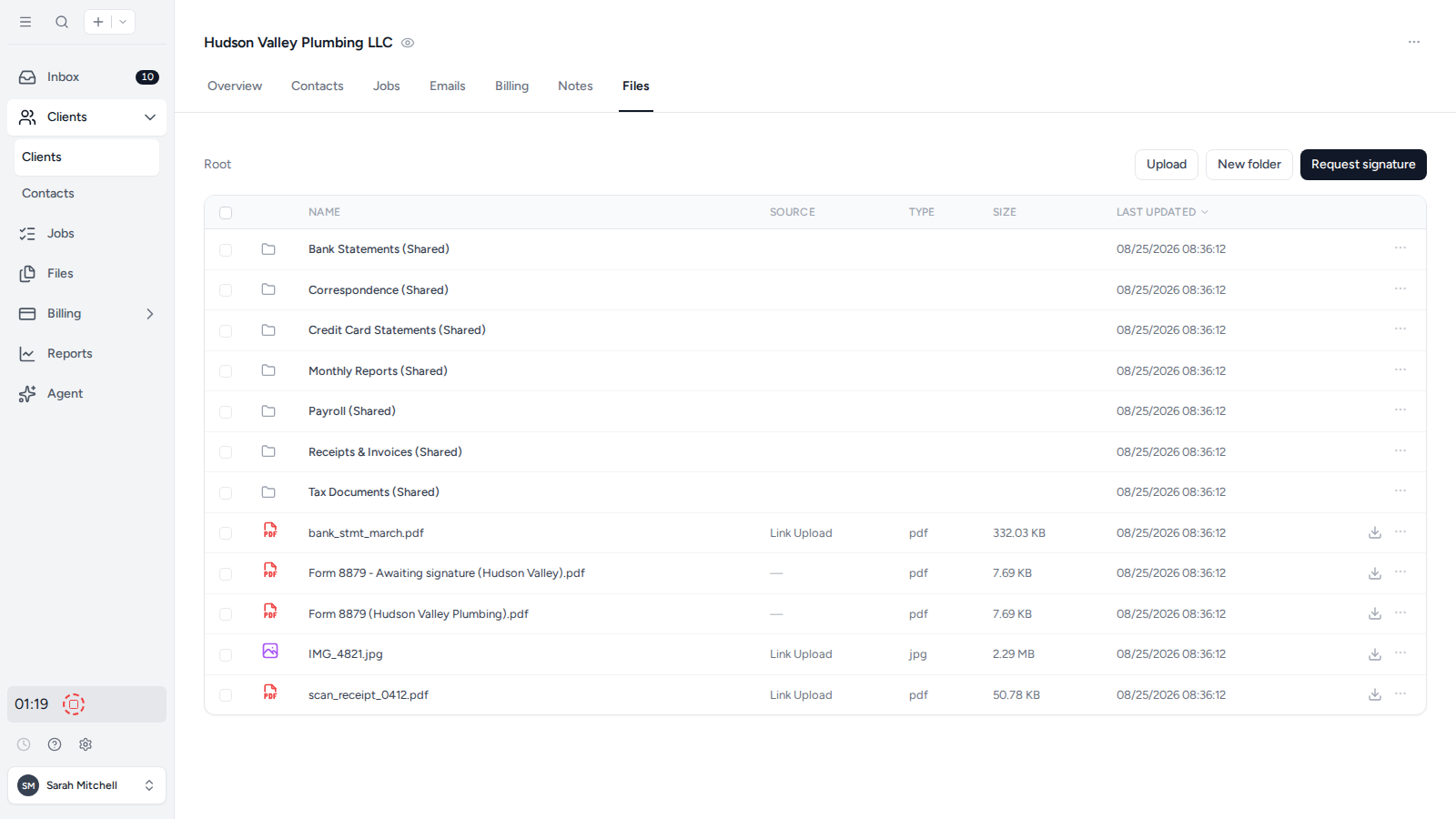
Open a client’s Files section
- Select Clients in the sidebar and open the client.
- Select the Files tab.
The Files section shows the client’s folders and files together with the current upload and folder controls.
Download files and folders
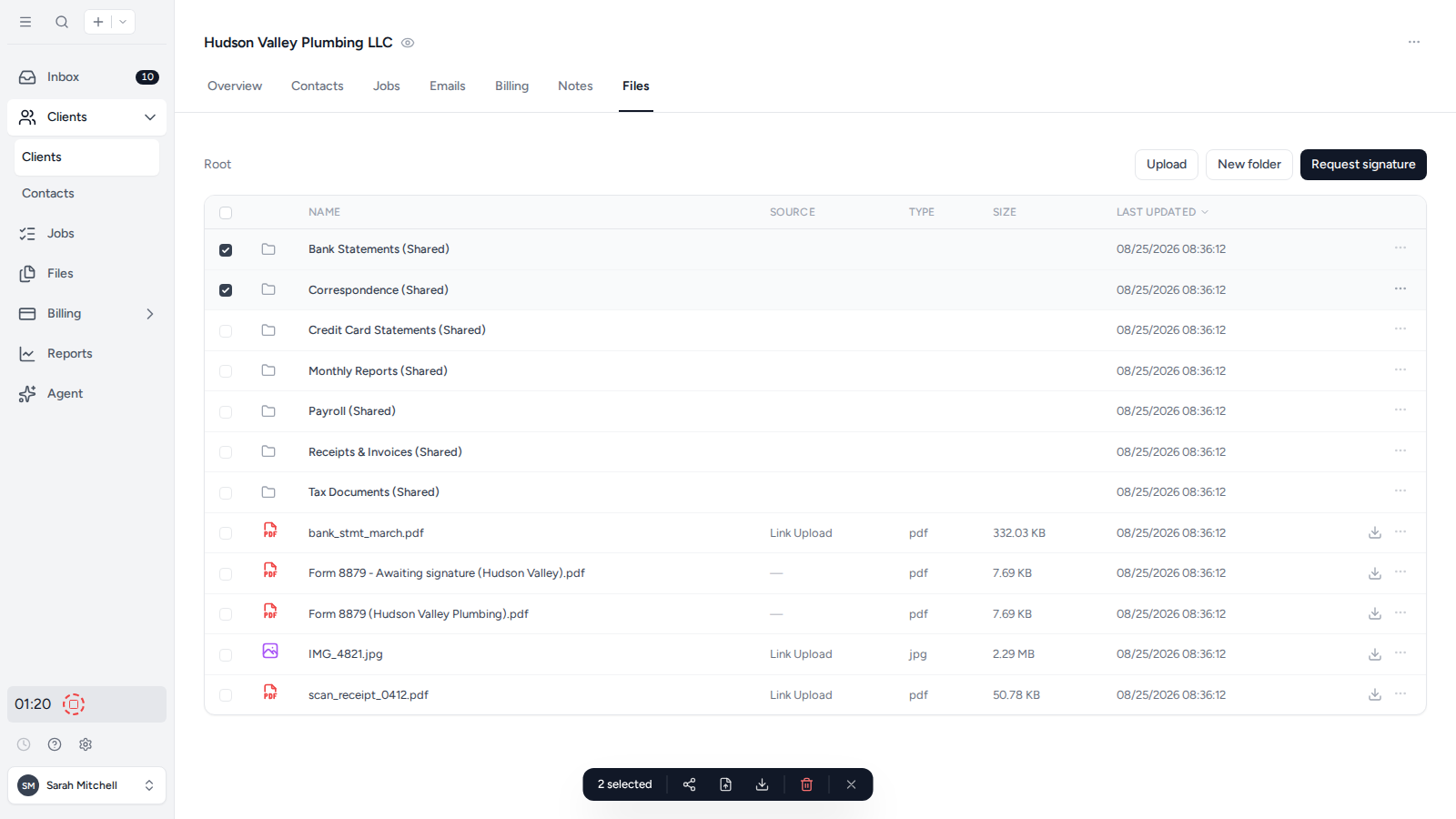
Use the download action on a file’s row to download one file. To download several files or folders, select their checkboxes and choose the download action in the bulk-action bar. Tidyflow prepares the archive and emails you a secure download link.
Upload files
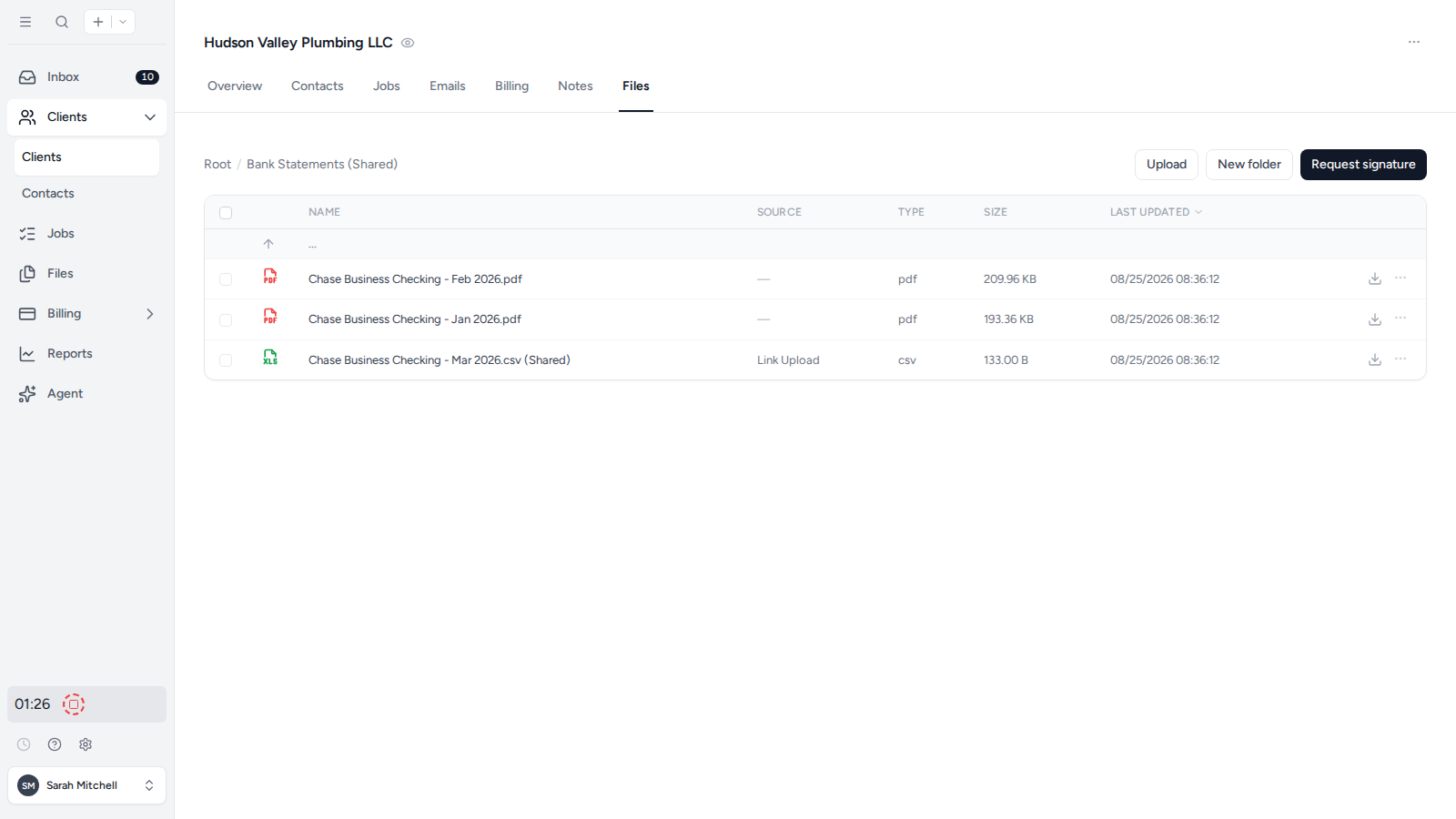
Open the folder where the files belong, then select Upload or drag files into the folder. Uploading from inside the folder keeps the client’s file structure organized.
Back up all client files and folders
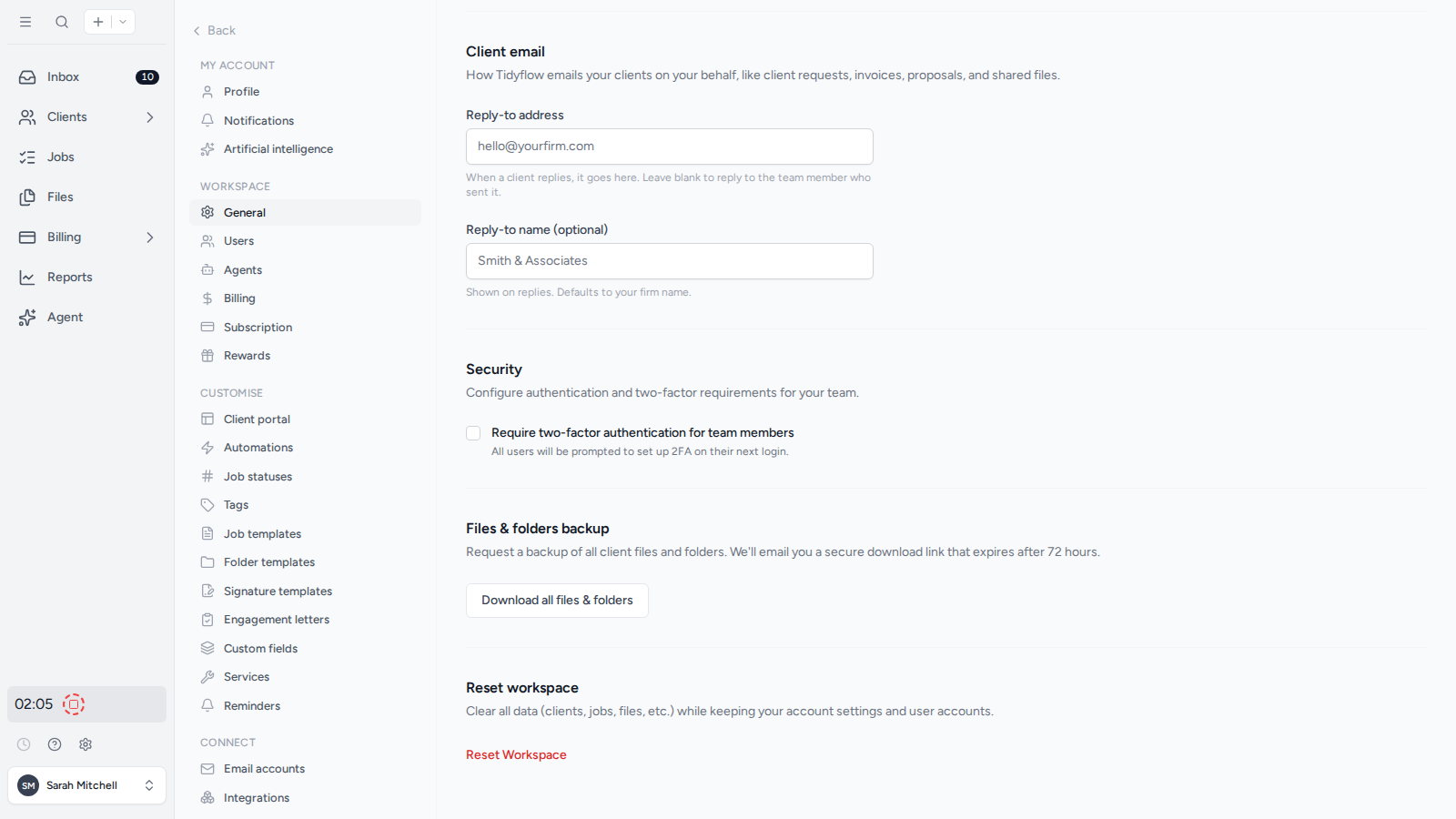
- Open Settings, then General.
- Find Files & folders backup.
- Select Download all files & folders.
Tidyflow emails you a secure download link when the backup is ready. The link expires after 72 hours.
Was this page helpful?
What went wrong?
Thanks for your feedback.
Last updated August 25, 2026